
Documentation
Custom Management Dashboard
Use the dashboard to view client count, active devices, regional distribution, coin share, and hashrate trends across custom builds.
Custom Management Dashboard
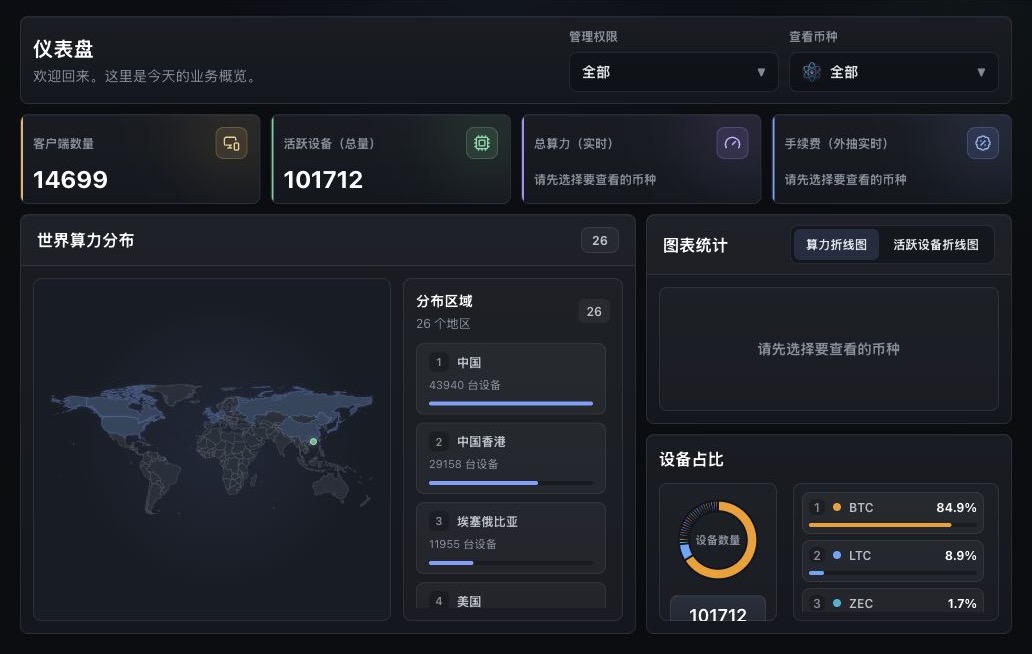
The dashboard defaults to all custom builds visible to the current account.
The dashboard is the first page after sign-in. It gives operators a quick health view across the custom-build fleet: account scope, coin scope, client installs, active devices, world distribution, charts, and coin share.
Filters
| Filter | Purpose |
|---|---|
| Management scope | Switch between All and a specific CID/custom name. |
| Coin | Switch between All and a specific coin for hashrate, external wallet-fee hashrate, maps, and charts. |
When All coins are selected, the page still shows client count, active devices, and device share. Live hashrate and coin charts require selecting a specific coin.
Fee Hashrate is used to observe hashrate diverted by the customer’s RustMinerSystem fee configuration. It is not the official fee billing ratio.
Metric Cards
| Metric | Description |
|---|---|
| Clients | Installed clients in the current scope. |
| Active Devices | Devices currently reporting valid activity in the current scope. |
| Total Hashrate | Live hashrate for the selected coin. |
| Fee Hashrate | Live hashrate produced by the selected coin’s RustMinerSystem fee configuration. |
Client and active-device metrics are useful for deployment scale. Total hashrate and fee hashrate are best checked at single-coin granularity against the customer’s RustMinerSystem and upstream pool data. To check inside fee rules configured in Custom Management, open Edit Fee Rate in Service Management for the matching CID and coin.
World Distribution
The world map groups devices or hashrate by IP region. Use it to check whether customer machines are in expected regions, whether one region dropped sharply, and whether a network issue is concentrated in a small geography.
If a region appears as unknown, the IP lookup did not return a clear country. Use client details to continue investigation.
Charts
The chart area includes:
| View | Use |
|---|---|
| Hashrate chart | Compare total hashrate and external wallet-fee hashrate over time for the selected coin. |
| Active-device chart | Inspect active-device changes for the selected coin. |
When a customer reports missing hashrate, missing fee hashrate, or dropped devices, first filter by management scope and coin, then compare the chart around the reported time. If the report is about inside fee ratio or inside-fee revenue, check Edit Fee Rate, version activation scope, and the customer’s network environment.
Daily Check
- Check
ClientsandActive Devices. - Review the coin share to confirm primary coins did not shift unexpectedly.
- Select key coins and review live hashrate, external wallet-fee hashrate, and charts.
- If one region dropped, continue with client details or Service Management checks.
- If only one custom build is affected, filter to that CID and repeat the check.